Guides · Published 27 Nov 2026
Sort scanned letters automatically: AutoSort and Workflow OCR
The scanner drops letters into Nextcloud as Scan_20261126_0815.pdf, without text and all in one folder. Two apps turn that into Documents/House/Energy/2026/2026.11.24_Stromrechnung.pdf: Workflow OCR recognizes the text, AutoSort reads it, finds the matching rule and files the document. This guide walks through the whole setup with an example.
 Related packageAutoSort Sorts PDFs in Nextcloud by their content
Tested with Nextcloud 33.0.11AutoSort 0.8.3Workflow OCR 1.33.2Workflow OCR Backend 1.33.0AppAPI 33.0.0HaRP 0.4.8
AutoSort runs on Nextcloud 33 to 36, HaRP is available from Nextcloud 32. With newer versions the guide usually works the same way, but individual menus may be named or look differently.
How the two apps work together
- A scan lands in the Scan inbox folder.
- Workflow OCR notices the new file, recognizes the text in the background and then assigns the tag ocr-ok.
- AutoSort reacts to ocr-ok, reads the text, checks the rules and moves and renames the PDF. If no rule fits, it goes to the Unsorted folder.
1. What the server needs
AutoSort reads the text with pdftotext from the poppler-utils package. It has to be installed where Nextcloud runs. On a Debian or Ubuntu server:
sudo apt install poppler-utilsNextcloud in a Docker container: packages installed into the running container are gone after the next update. Build a small image of your own on top of the official one and use build: . instead of image: in docker-compose.yml:
FROM nextcloud:stable-apache
RUN apt-get update \
 && apt-get install -y --no-install-recommends poppler-utils \
 && rm -rf /var/lib/apt/lists/*
Highlighted: adapt to your own setup.
stable-apache always is the current stable Nextcloud. If you have been using a fixed version or the FPM variant, put the same after FROM as you had under image:, such as nextcloud:34-apache or nextcloud:stable-fpm. To update, instead of docker compose pull run:
docker compose build --pull && docker compose up -dNextcloud AIO: Set NEXTCLOUD_ADDITIONAL_APKS="imagemagick poppler-utils" on the master container and the package stays in the Nextcloud container for good.
Workflow OCR does not recognize the text on the server itself but in a container of its own, the Workflow OCR Backend app. It ships OCRmyPDF and all languages. Nextcloud starts and manages this container through AppAPI. That needs Docker and a deploy daemon. If AppAPI is already set up, for example for other apps, skip ahead to step 3.
Both apps work in background jobs. Under Administration settings › Basic settings › Background jobs, Cron should therefore be selected and the cron job set up.
2. Set up AppAPI
AppAPI already running? If Administration settings › AppAPI already lists a default deploy daemon, skip this step and continue with step 3: Install the apps.
AppAPI ships with Nextcloud, but it needs a deploy daemon that starts the app containers. There are several kinds, and Administration settings › AppAPI › Register daemon has a template for each:
- HaRP: the recommended way since Nextcloud 32, as a container next to Nextcloud.
- HaRP All-in-One: for Nextcloud AIO, where HaRP is switched on in the AIO interface.
- Docker Socket Proxy: the older way, for Nextcloud before version 32.
The Nextcloud manual describes which one fits your setup. As an example, here is HaRP for a Nextcloud running in Docker. Highlighted parts have to be adapted to your setup.
Example: HaRP
HaRP joins the same Docker network as Nextcloud. HP_SHARED_KEY is a password you choose, NC_INSTANCE_URL the usual address of your Nextcloud:
docker run -d --name appapi-harp -h appapi-harp \
  --network nextcloud --restart unless-stopped \
  -p 8780:8780 \
  -e HP_SHARED_KEY="ein-langes-geheimes-passwort" \
  -e NC_INSTANCE_URL="https://cloud.example.com" \
  -v /var/run/docker.sock:/var/run/docker.sock \
  ghcr.io/nextcloud/nextcloud-appapi-harp:release
Highlighted: adapt to your own setup.
Important: Nextcloud talks to the app containers through its own address and the path /exapps/. The reverse proxy in front of Nextcloud therefore has to pass this path on to HaRP on port 8780. In Nginx Proxy Manager, open the Nextcloud proxy host and add a Custom Location: location /exapps/, target the IP address of the Docker host and port 8780. With plain Nginx:
location ^~ /exapps/ {
    proxy_pass http://127.0.0.1:8780/exapps/;
    proxy_read_timeout 1800s;
}
Highlighted: adapt to your own setup.
Without this forwarding, installing the backend will hang later. If the reverse proxy runs on another machine, also start HaRP with -e HP_TRUSTED_PROXY_IPS="192.168.1.10" set to its address.
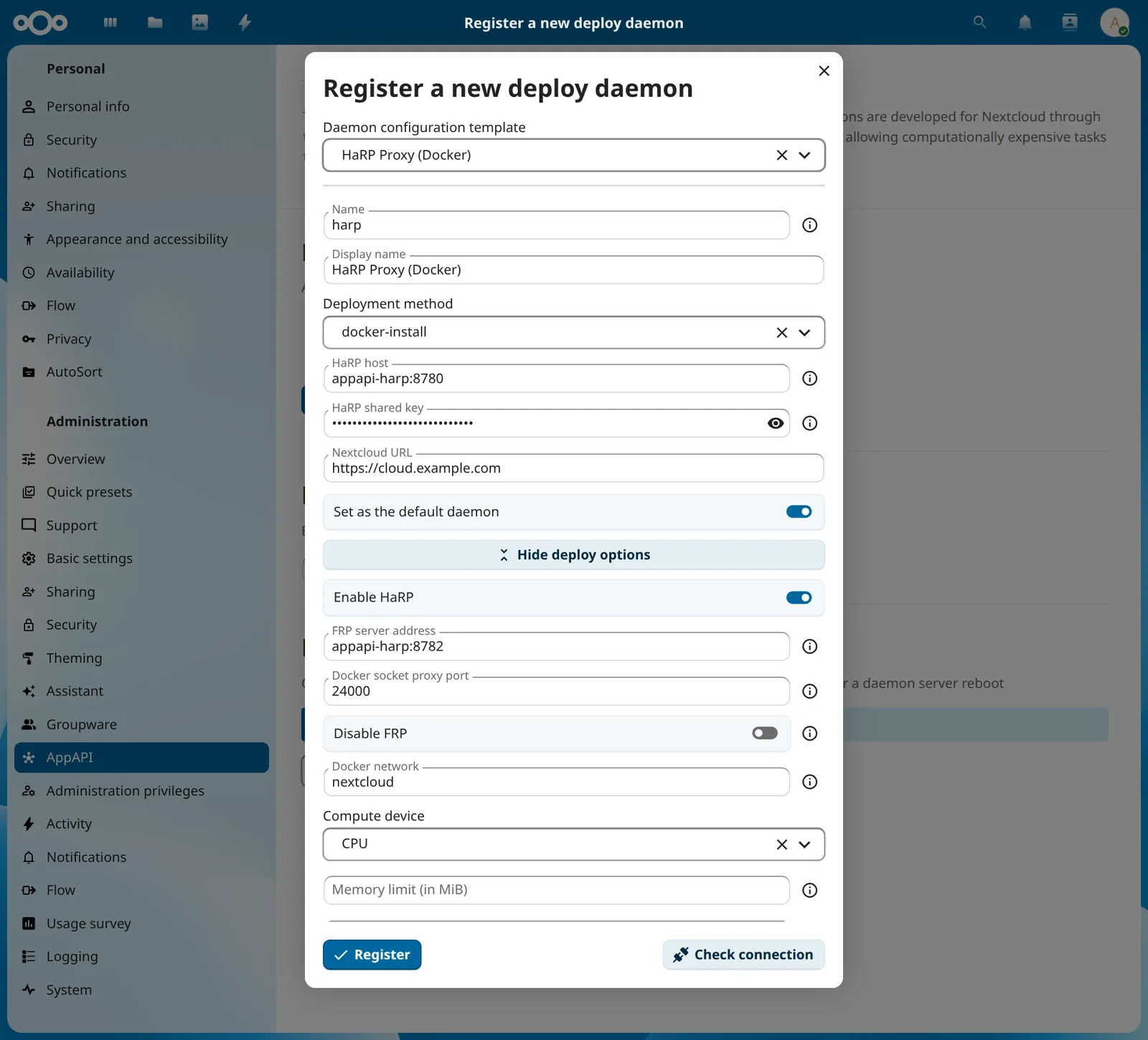
Then in Nextcloud open Administration settings › AppAPI, click Register daemon, choose the HaRP Proxy (Docker) template and fill in:
- HaRP host: appapi-harp:8780
- HaRP shared key: the same password as
HP_SHARED_KEY - Nextcloud URL: the usual address, as in
NC_INSTANCE_URL - Under Deploy options: FRP server address appapi-harp:8782 and Docker network nextcloud
Test with Check connection, then Register.
3. Install the apps
As an administrator, search under Apps for Workflow OCR, Workflow OCR Backend and AutoSort one after the other and choose Download and enable for each. For the backend, Nextcloud downloads the container and starts it, which takes a few minutes the first time. All three are in the Nextcloud App Store: Workflow OCR, Workflow OCR Backend and AutoSort.
If something is missing, Workflow OCR reports it under Administration settings › Overview. AutoSort shows a notice in its settings if pdftotext is missing.
4. Create the Scan inbox folder
Every user does the remaining steps for themselves. In Files click + New and then New folder and name it Scan inbox. Create an Unsorted folder the same way for everything no rule fits.
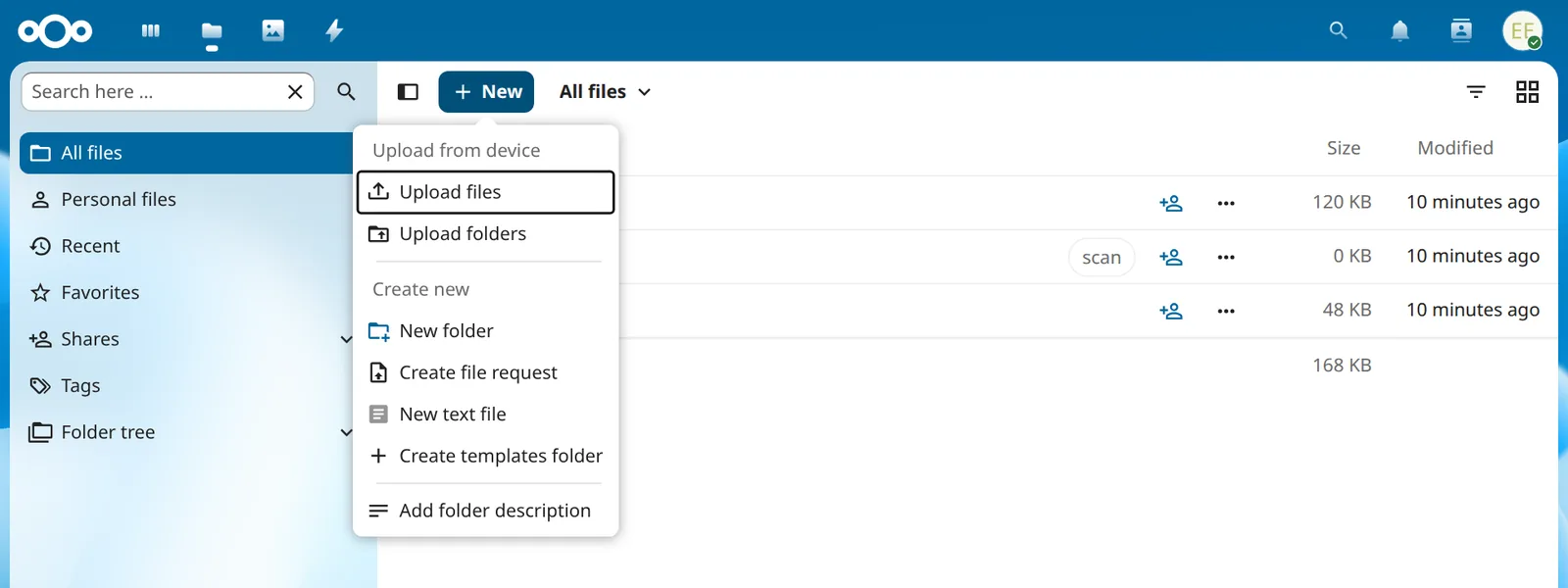
Later the scans go into the Scan inbox, for example straight from the scanner via WebDAV, with the Nextcloud desktop client or with the Nextcloud app on your phone. If the scanner is connected to the Nextcloud server, Scan to PDF scans straight into the folder from + New in Files.
5. The tags scan and ocr-ok
A flow cannot ask for a folder directly, but it can ask for a tag, and a tag on a folder also counts for all files inside. That is why the Scan inbox gets the tag scan.
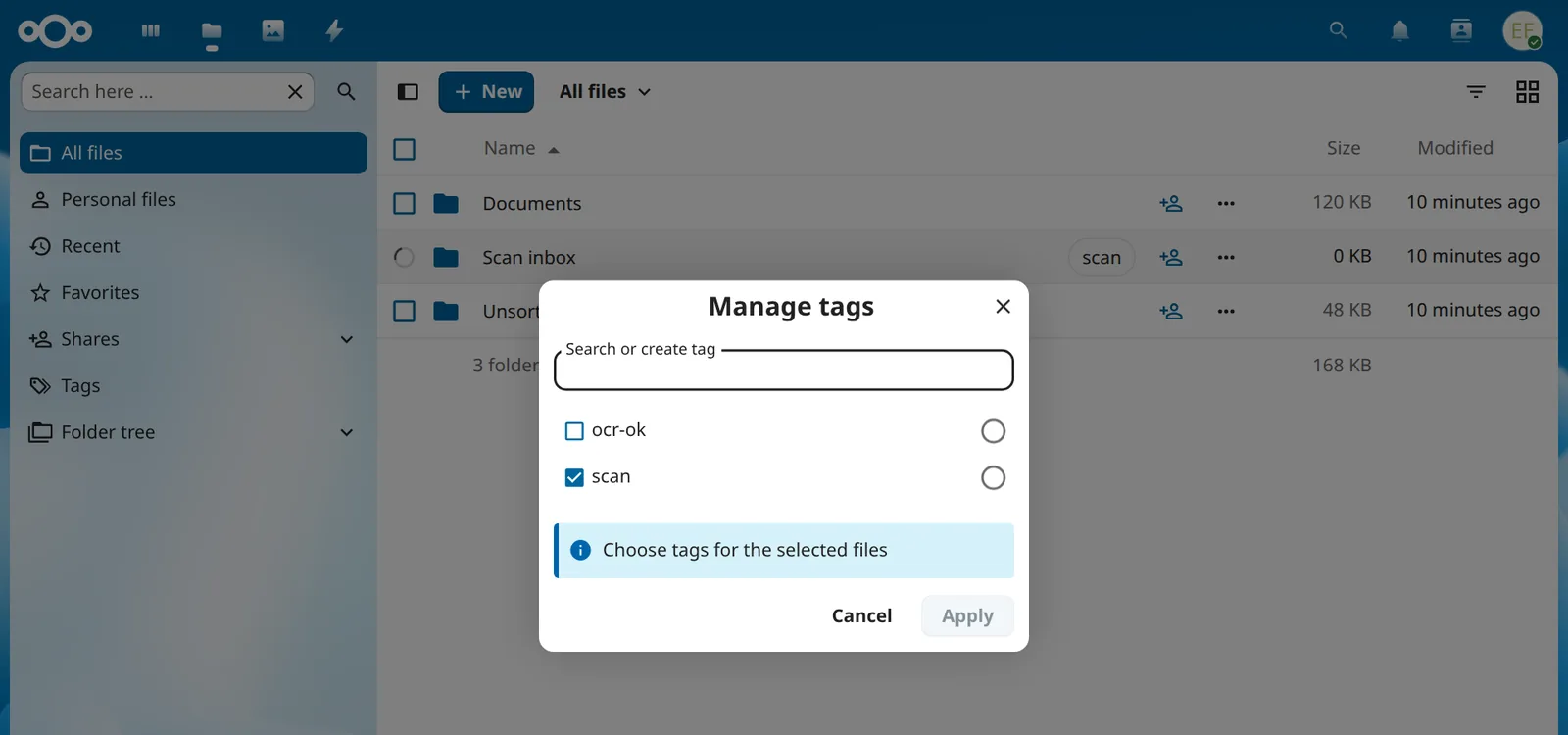
- Click … on the Scan inbox folder and then Manage tags.
- Type scan and create it, it gets ticked.
- Create ocr-ok the same way, but untick it again. Workflow OCR will put this tag on every finished file later.
- Confirm with Apply. The folder now shows scan.
6. Point Workflow OCR at the Scan inbox
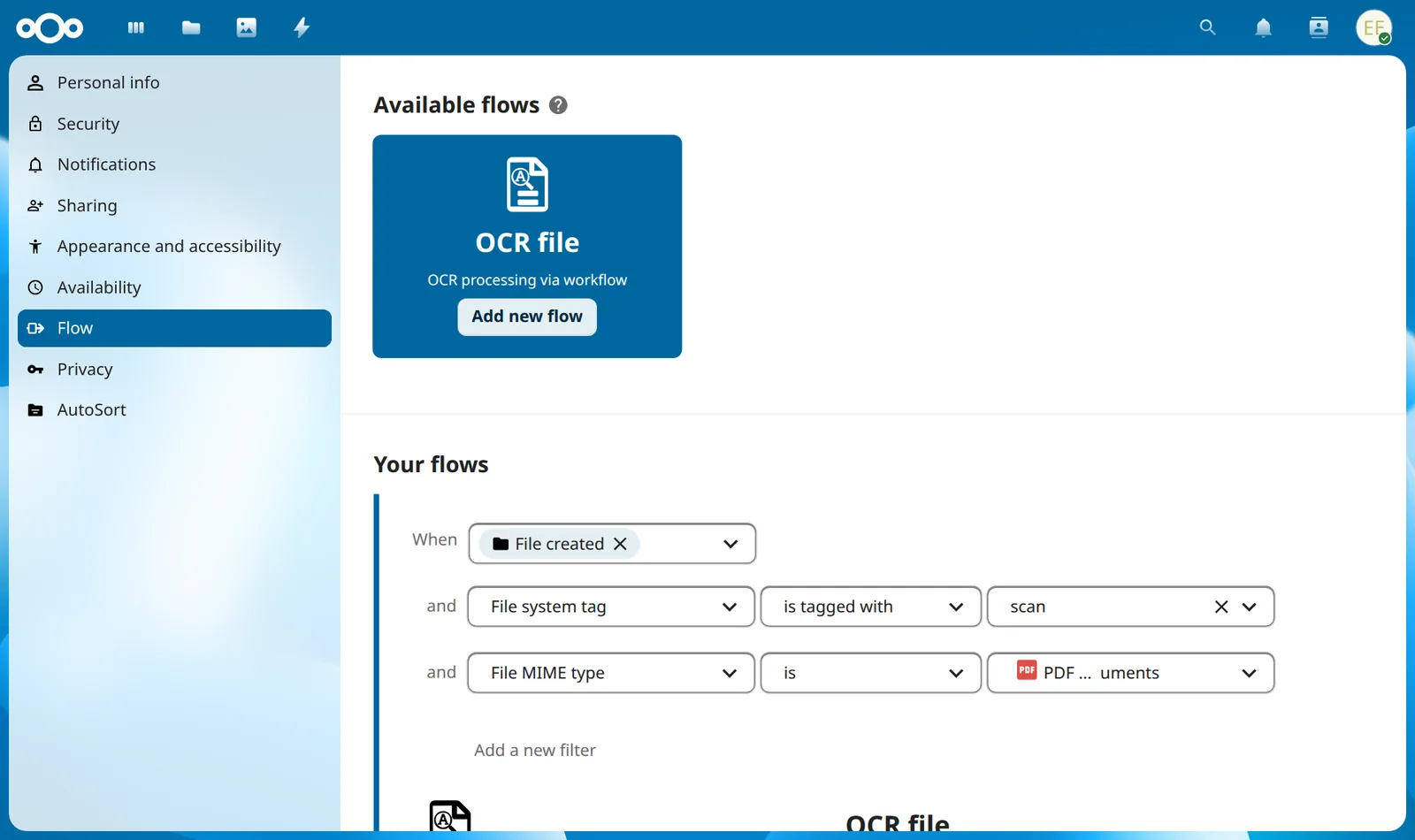
In Personal settings, open Flow and click Add new flow on the OCR file tile. Fill it in like this:
- When: File created
- and: File system tag · is tagged with · scan
- and: File MIME type · is · PDF documents
Below that, the OCR settings:
- OCR language: German, for mixed mail English as well. The backend ships all languages.
- Assign tags after OCR: ocr-ok
- OCR mode: Skip text. PDFs that already contain text stay as they are.
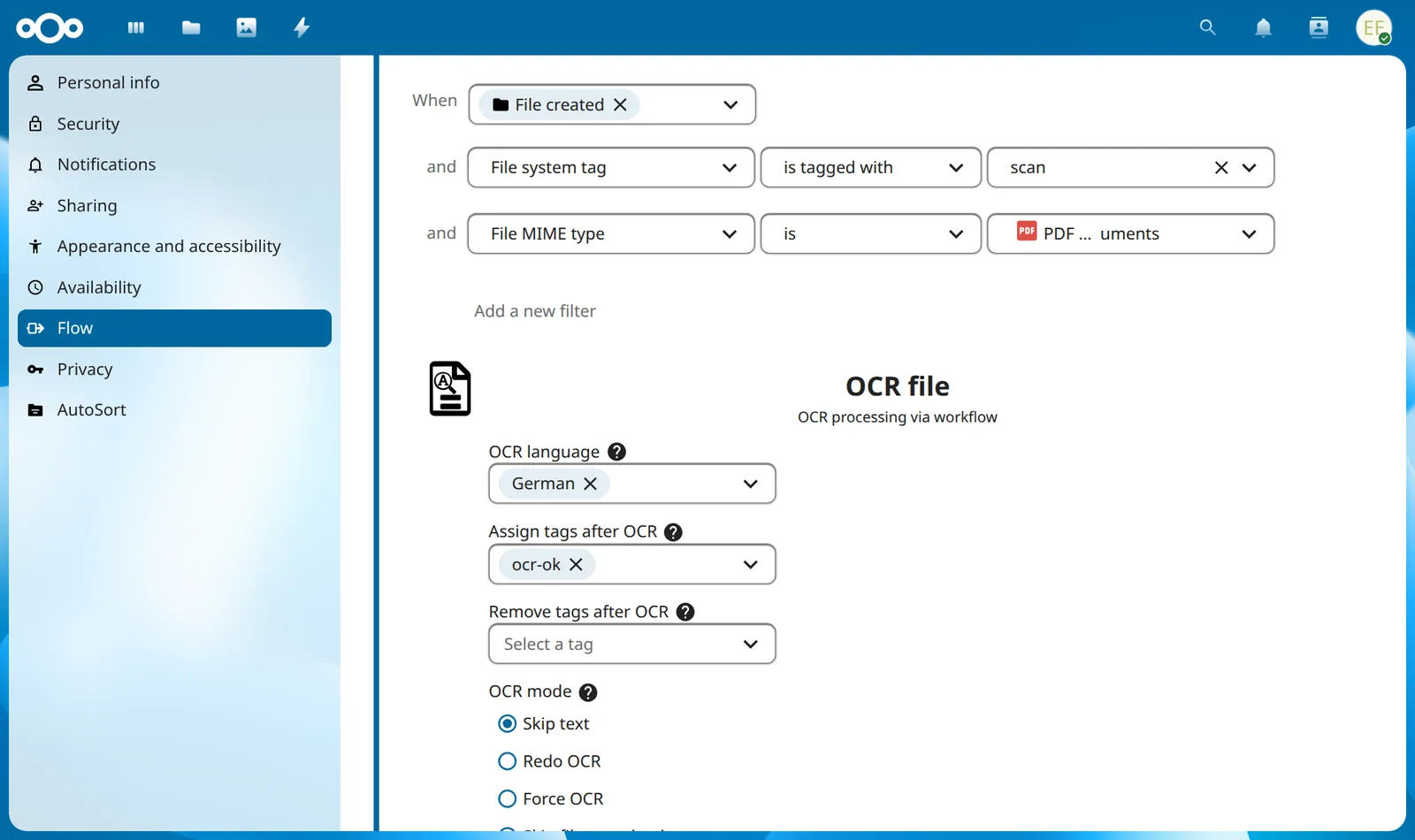
Click Save at the bottom. An administrator can create the same flow for all users under Administration settings › Flow.
7. Set up AutoSort
In Personal settings, open AutoSort:
- Inbox folder: Scan inbox
- Folder for unsorted PDFs: Unsorted
- Only sort once this tag is set: ocr-ok
- Remove this tag after sorting: leave ticked
Then Save. Thanks to the tag, AutoSort waits until text recognition is done and never reads a half-processed PDF.
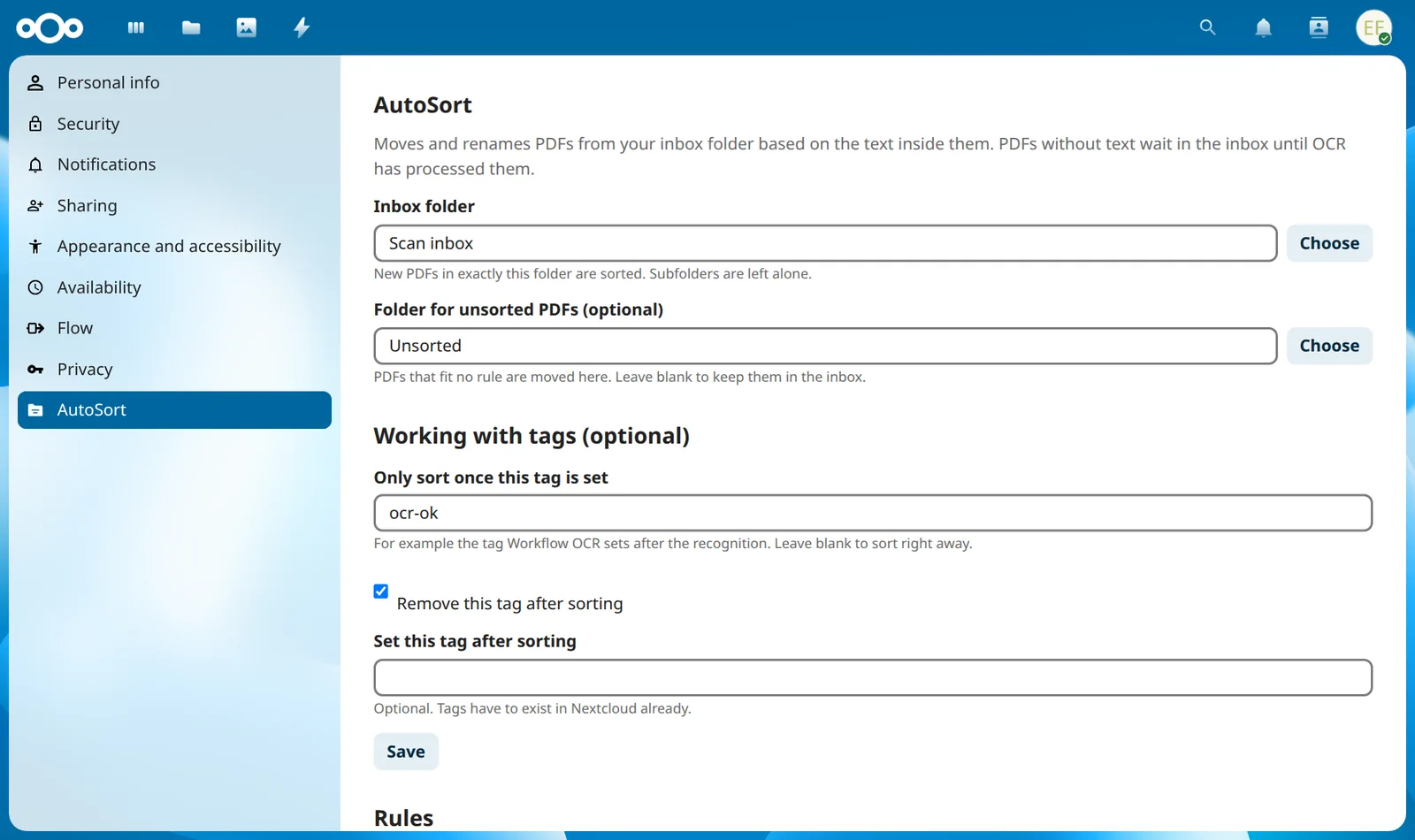
8. The first rule
Under Rules add a category such as House and a rule for the utility's electricity bill in it:
- Terms (AND): Stadtwerke Musterstadt. Everything in this list has to be in the letter.
- Terms (OR): Stromrechnung, Gasrechnung, Rechnung, one per line. One of them has to appear. Specific words first, the general one last.
- Target folder:
Documents/House/Energy/{JJJJ}. AutoSort creates missing folders,{JJJJ}becomes the year from the letter. - New file name:
{JJJJ.MM.TT}_{Treffer}.pdf.{Treffer}is the first word of the OR list that was found. - The date comes after: Datum. This way AutoSort takes the letter's date and not, say, a due date further up.
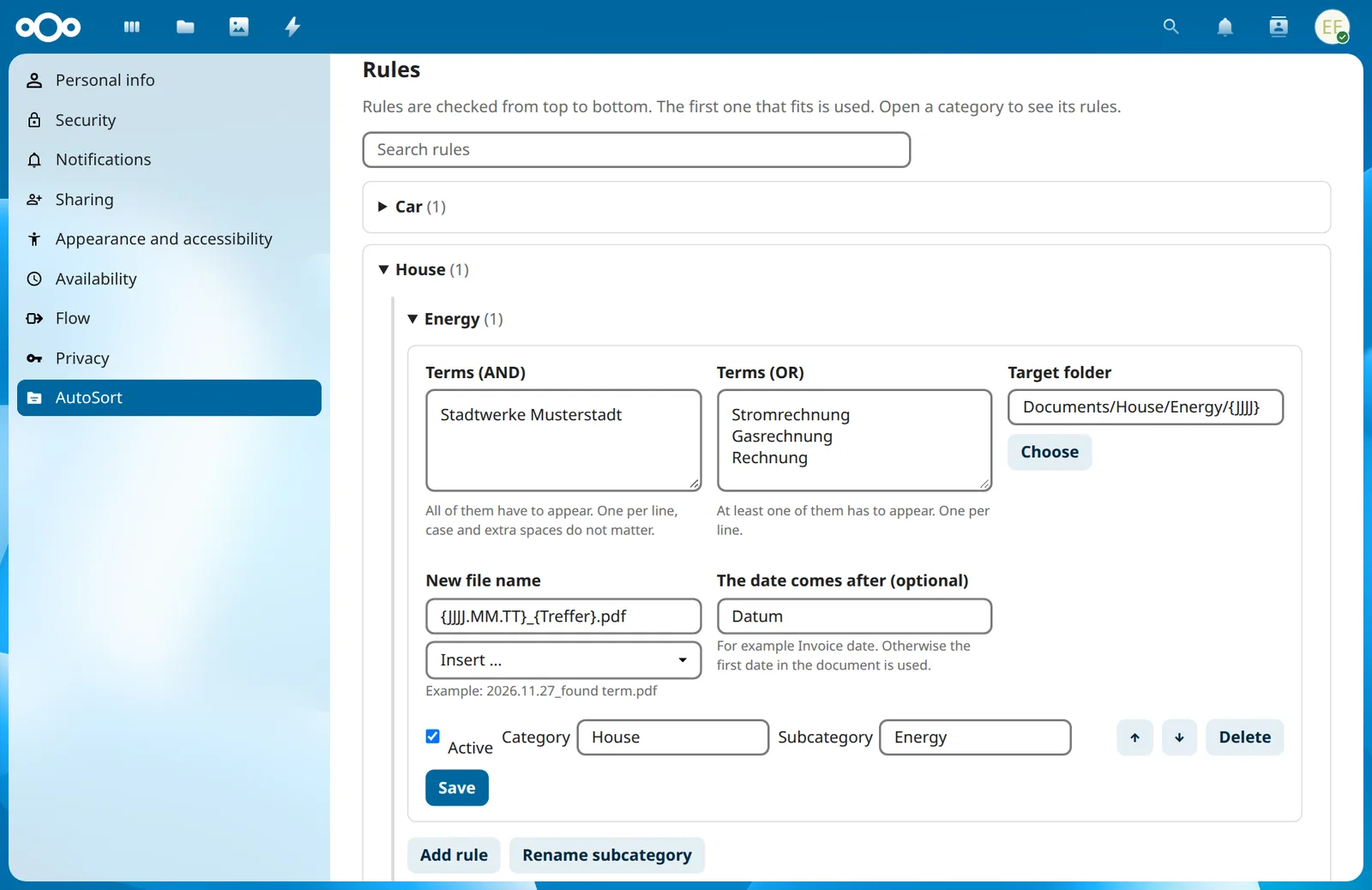
Try it out further down tests the rules on a PDF that already has text. AutoSort shows which rule fits and what the file would be called, without moving it.
9. Try it
Now put a scan into the Scan inbox. On the next background job run, Workflow OCR recognizes the text and sets ocr-ok, on the run after that AutoSort files the PDF. With cron every five minutes this takes up to ten minutes.
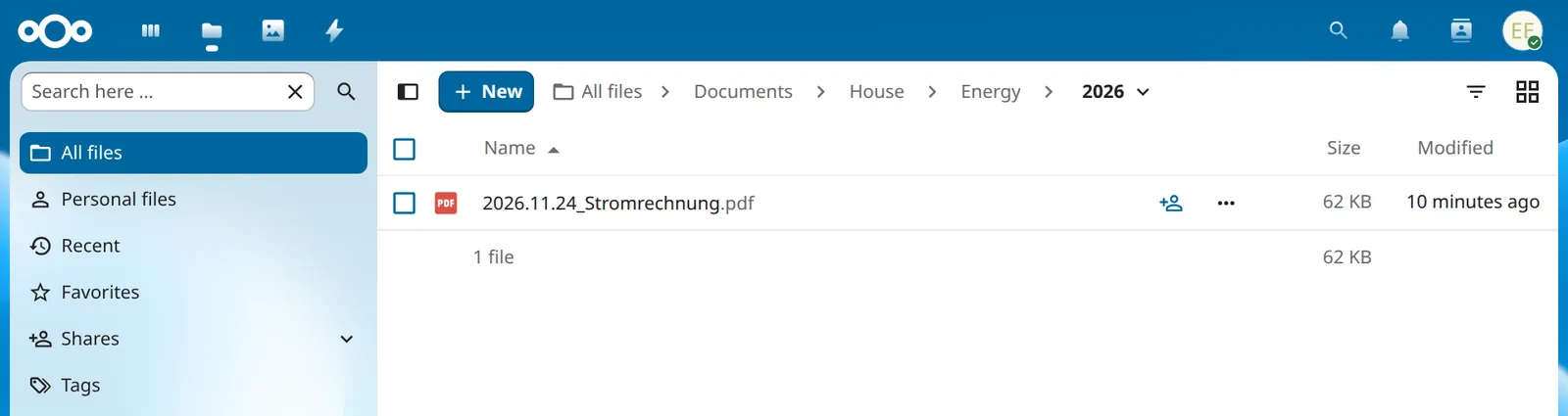
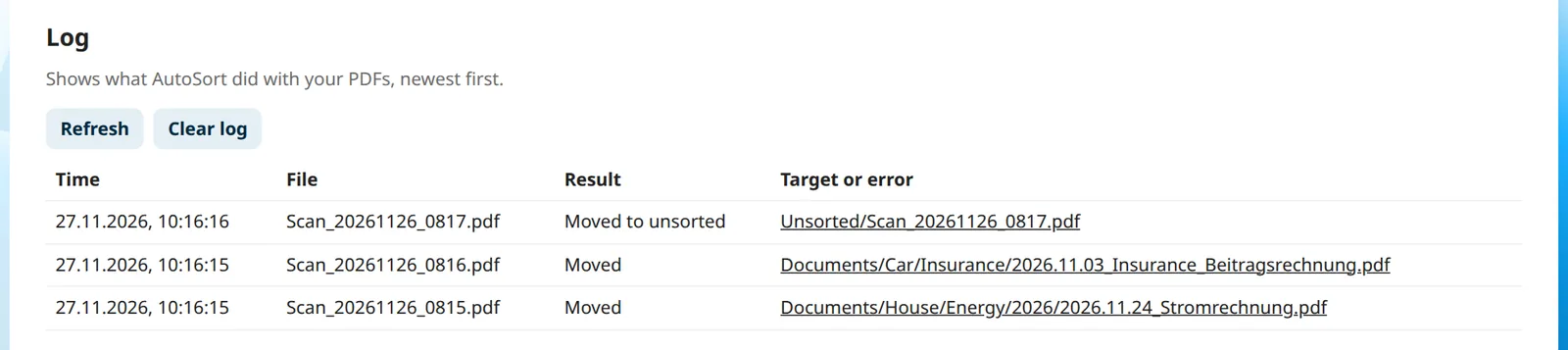
The Log at the end of the AutoSort settings shows what happened to each PDF, with a link to the file. The invitation from the sports club fitted no rule and is in Unsorted.
If something doesn't work
- Nothing happens: Are the background jobs running? Administration settings › Basic settings shows when they last ran. Workflow OCR reports recognition errors as notifications.
- The backend won't install or hangs: Check that
/exapps/is forwarded to HaRP. The Nextcloud log then shows errors aboutheartbeat. - The PDF stays in the Scan inbox: It has no ocr-ok yet. This also applies to files that were there before the setup. Assign the tag ocr-ok to them by hand and AutoSort files them right away.
- It ends up in Unsorted: No rule fits. Try it out shows why. OCR sometimes misreads single letters, shorter terms help in that case.
- Wrong date in the name: Enter the word in front of the letter's date under The date comes after, such as Datum or Rechnungsdatum.
- Subfolders of the Scan inbox are left alone, only files directly inside are sorted.